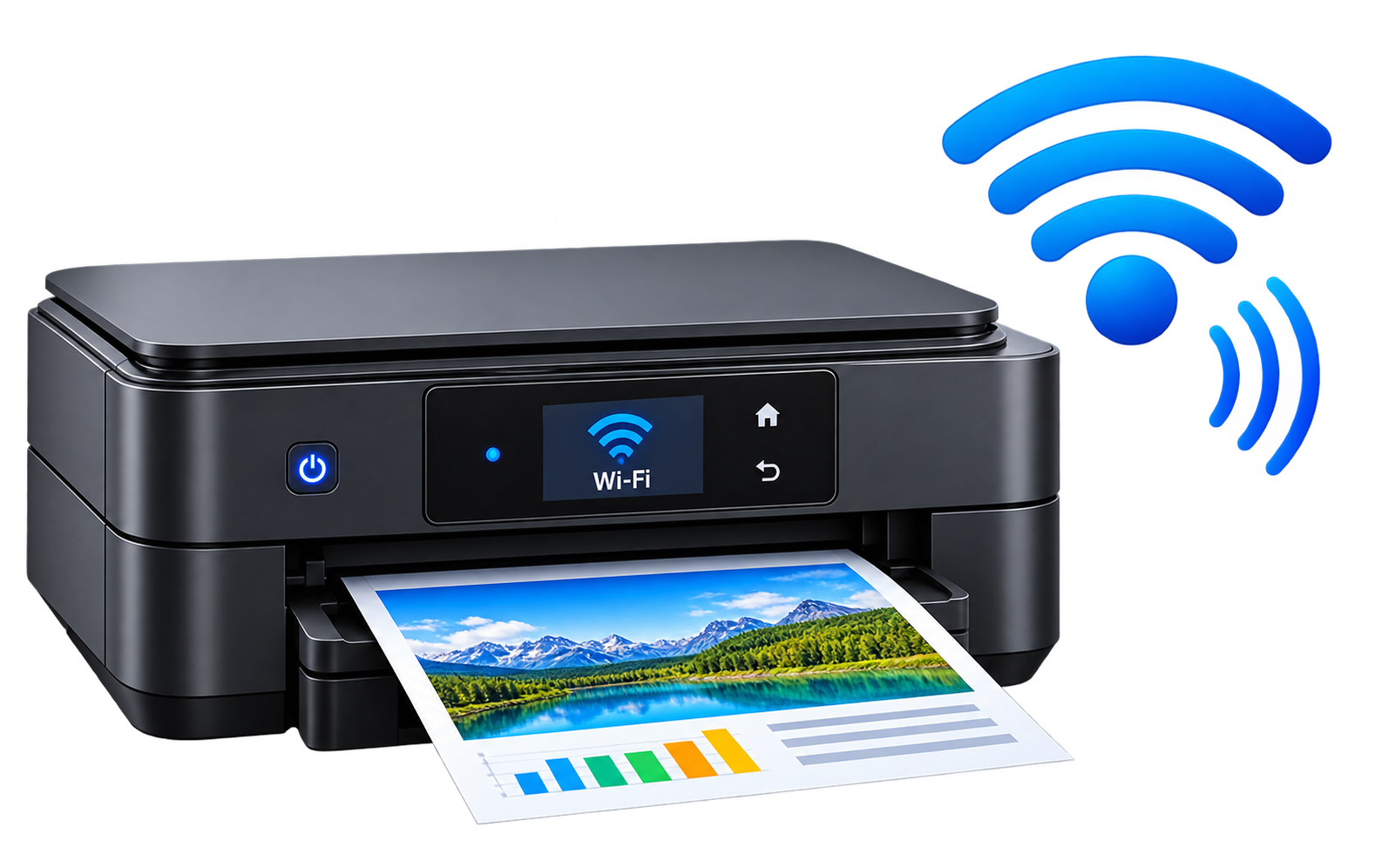
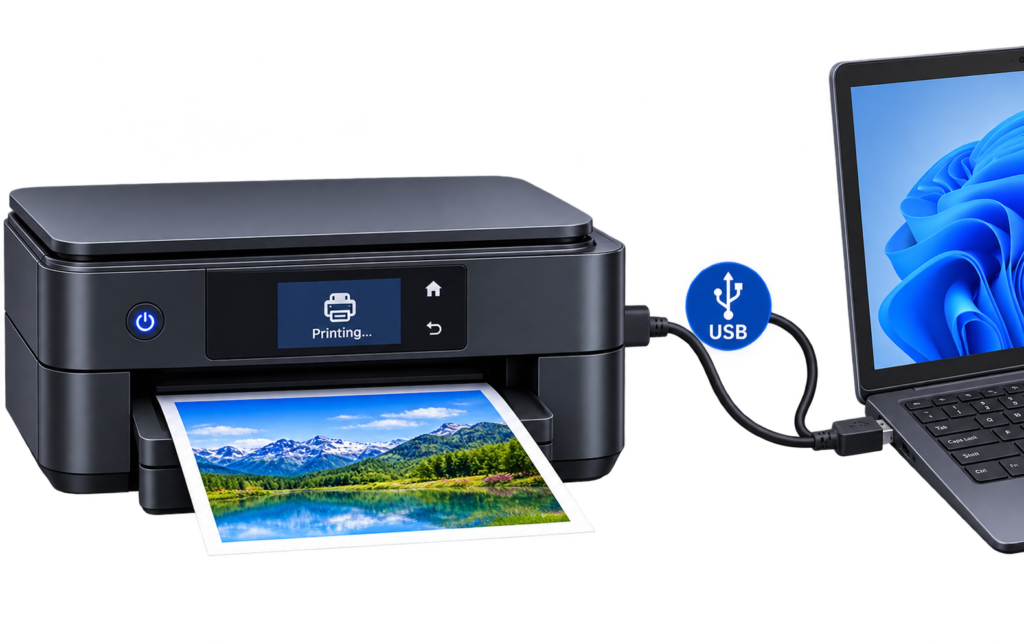
Select Printer Connection Type:-
TALK TO LIVE CHAT SUPPORT FOR NEW PRINTER SETUP
STEPS FOR PRINTER SETUP:-
- Unbox the Printer: Remove all the packaging materials from the printer.
- Connect Power: Plug in the power cord and turn on the printer.
- Install Ink or Toner Cartridges: Follow the instructions provided with the printer to install the ink or toner cartridges. Make sure they are properly inserted.
- Load Paper: Open the paper tray and load it with the appropriate type and size of paper.
- Connect to Computer:
Printer Setup & Support
Wireless Printer Setup, USB Connection & Driver Installation Help
Welcome to our Printer Setup & Support Center, your online destination for guidance with printer installation, wireless connectivity, USB connections, printer drivers, and common printing problems.
Setting up a new printer or reconnecting an existing device can sometimes be confusing. Our goal is to make the process easier with clear setup instructions, practical troubleshooting guidance, and helpful resources for compatible printers and computers.
Whether you want to connect your printer to a Wi-Fi network, install it using a USB cable, configure printer drivers, or resolve a printing error, we are here to help you understand the steps involved.
Get started today and make your printer setup process simpler.
[Get Printer Setup Help] [Explore Support Services]
Our Printer Setup & Support Services
1. Wireless Printer Setup
Connect your compatible printer to your home or office Wi-Fi network and print from supported computers and devices.
Our wireless setup guidance can help you understand how to:
- Connect your printer to a wireless network.
- Configure Wi-Fi settings on supported printer models.
- Connect a printer and computer to the same network when required.
- Add a wireless printer to Windows or macOS.
- Troubleshoot common Wi-Fi connection problems.
- Resolve issues when a printer appears offline.
Follow the instructions designed for your printer model to help establish a reliable wireless connection.
2. USB Printer Setup
Need to connect your printer directly to your computer? A USB connection can provide a straightforward way to configure many compatible printers.
Our USB setup resources cover:
- Connecting a printer to a computer using a compatible USB cable.
- Installing the appropriate printer software and drivers.
- Adding a USB-connected printer to your computer.
- Troubleshooting printer detection problems.
- Checking USB ports, cables, and connection settings.
- Resolving common communication errors.
For the best results, follow the manufacturer’s instructions and use a compatible cable.
3. Printer Driver Installation
Printer drivers help your computer communicate with your printer. Installing the correct driver can be important when setting up a new device or resolving printing problems.
We provide guidance on:
- Finding the appropriate driver for your printer model.
- Checking compatibility with your operating system.
- Installing printer software and drivers.
- Resolving common driver installation errors.
- Reinstalling or updating printer drivers when necessary.
- Checking whether the printer is recognized by your computer.
Whenever possible, obtain drivers from the printer manufacturer’s official website.
4. New Printer Installation
Purchased a new printer? We can help you understand the typical setup process, from preparing the device to printing a test page.
General installation steps include:
- Unpack the printer and remove protective materials.
- Install ink cartridges or toner as instructed.
- Load compatible paper.
- Power on the printer.
- Connect using Wi-Fi or USB.
- Install the required software or drivers.
- Add the printer to your computer and print a test page.
The exact process depends on your printer model.
5. Printer Offline Troubleshooting
A printer may appear offline because of network interruptions, connection problems, incorrect settings, or driver issues.
Try these basic checks:
- Confirm that the printer is powered on.
- Check the printer’s display for error messages.
- Verify the Wi-Fi connection or USB cable.
- Make sure the correct printer is selected.
- Review the print queue for paused or stuck jobs.
- Restart the printer and computer if appropriate.
If the issue continues, consult the printer manufacturer’s troubleshooting instructions or request additional technical assistance.
6. Printing and Connectivity Support
Having trouble printing documents, connecting a laptop, or detecting your printer?
Our support resources cover common issues such as:
- Printer not detected by the computer.
- Wireless printer connection failures.
- USB connection errors.
- Driver installation problems.
- Print queue and spooler issues.
- Printer configuration and test-page errors.
- Basic printing quality and paper-feed problems.
We aim to make technical information easier to understand so you can identify the next appropriate